VVeoForge
Using VeoForge
AI videos and images from text: signing in, making, credits, downloading, reporting problems and help.
For everyone who gets credits from a seller. Parts that are only for one group say so in their title.
1.Open an account and sign in
- Open the invite link your seller sent you. Opening an account through it makes you that seller's customer, and the credits they give you land in your account.
- Tap "Create account" (on the sign-in page: "New account"). Use Google, or your email and a password. A code arrives by email; type it in.
- To come back later, open veoforge.dev, tap "Sign in" and use the same email or Google account.
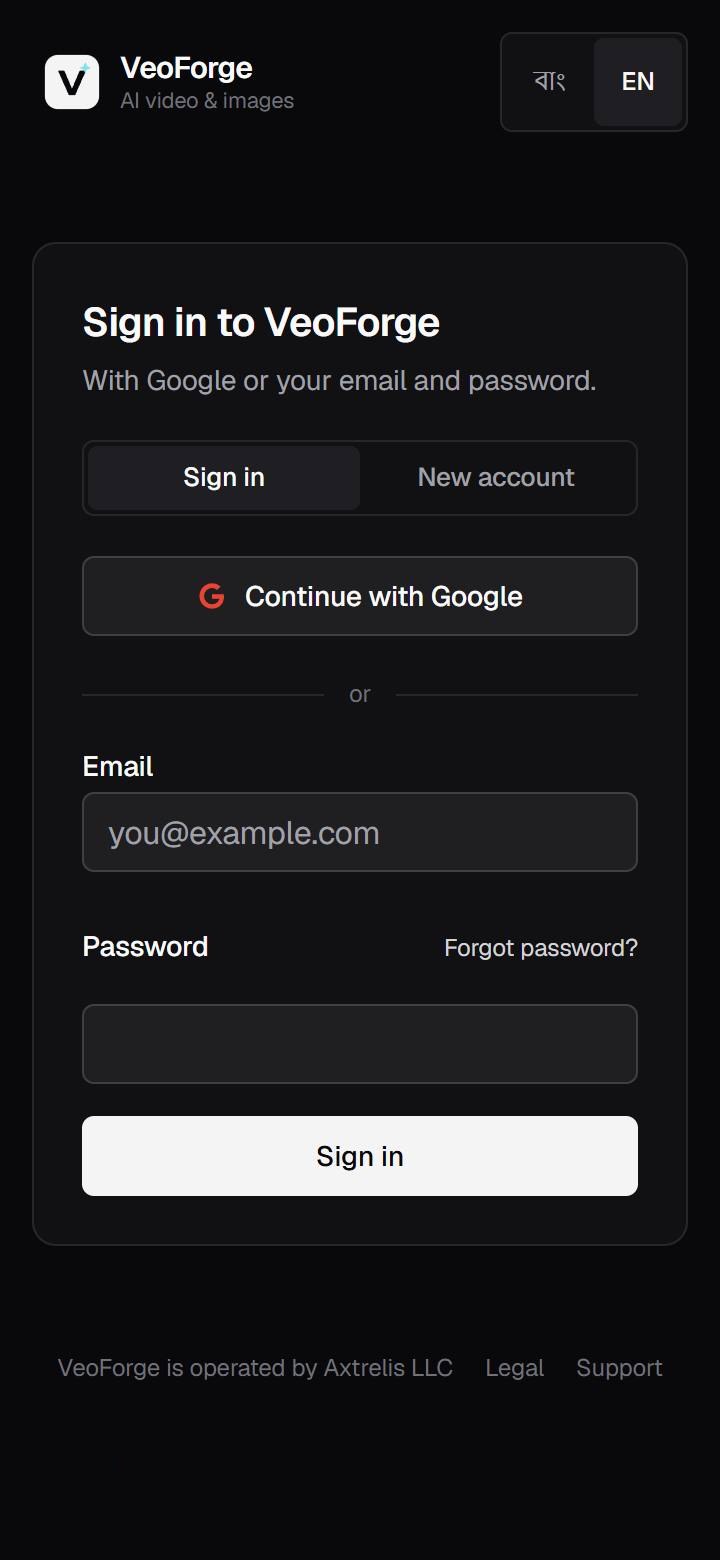
- Switch the language at the top right with "বাং / EN".
Good to know
- Forgot your password? Tap "Forgot password?" on the sign-in page.
- One account is for one person. Never share your password.
2.Make a video
- Open "Create" from the menu on the left (on a phone, the button at the top left). Check that "Video" is selected.
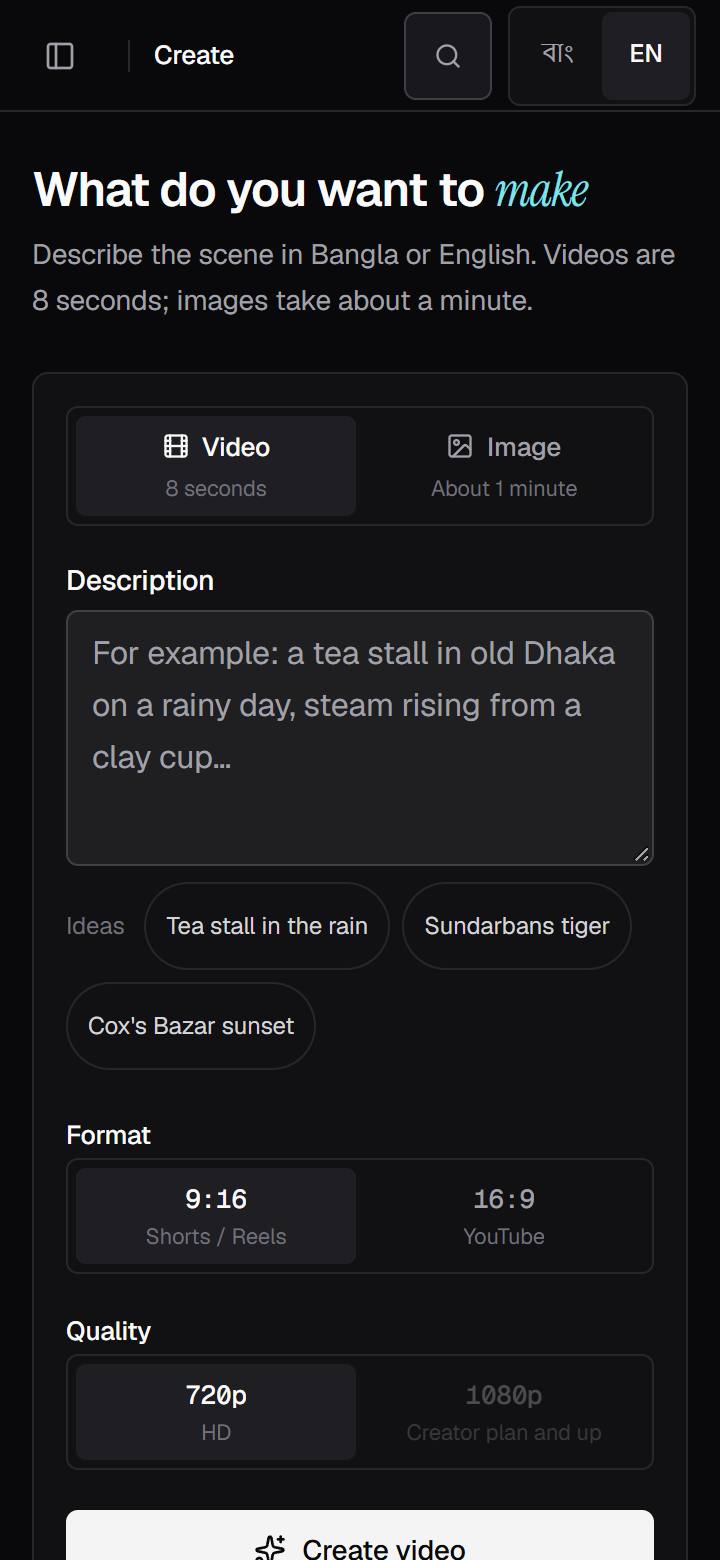
- In "Description", write in Bangla or English what you want to see, for example: "a tea stall in old Dhaka on a rainy day, steam rising from a clay cup". The "Ideas" buttons give you a start.
- Pick a "Format": 9:16 for Shorts and Reels, 16:9 for YouTube.
- Tap "Create video". Every video is 8 seconds. Most are ready in a few minutes; the work goes on even if you close the page.
Good to know
- Say who, where, what is happening, and how the light and the camera look; the result gets better.
- If a video fails, change the wording a little and try again. Credits for anything that was not made come back by themselves.
3.Make an image
- On "Create", pick "Image" at the top.
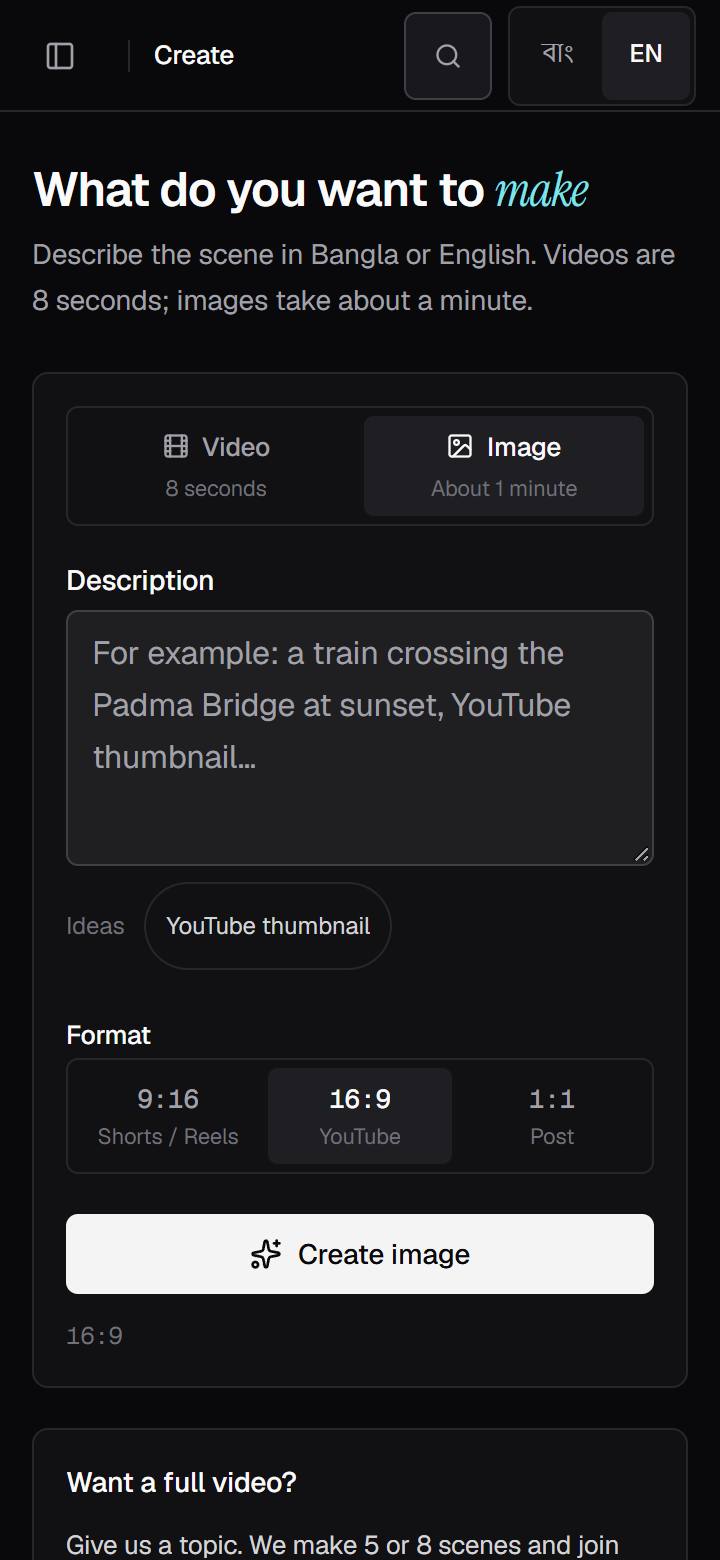
- Describe the image, then pick the format: 9:16, 16:9 (for example a YouTube thumbnail) or 1:1 (a post).
- Tap "Create image". An image usually takes about a minute and shows up on the same page.
4.Credits and expiry
- On "Create", the "Left this period" box shows how many videos and images you have left and the date they can be used until.
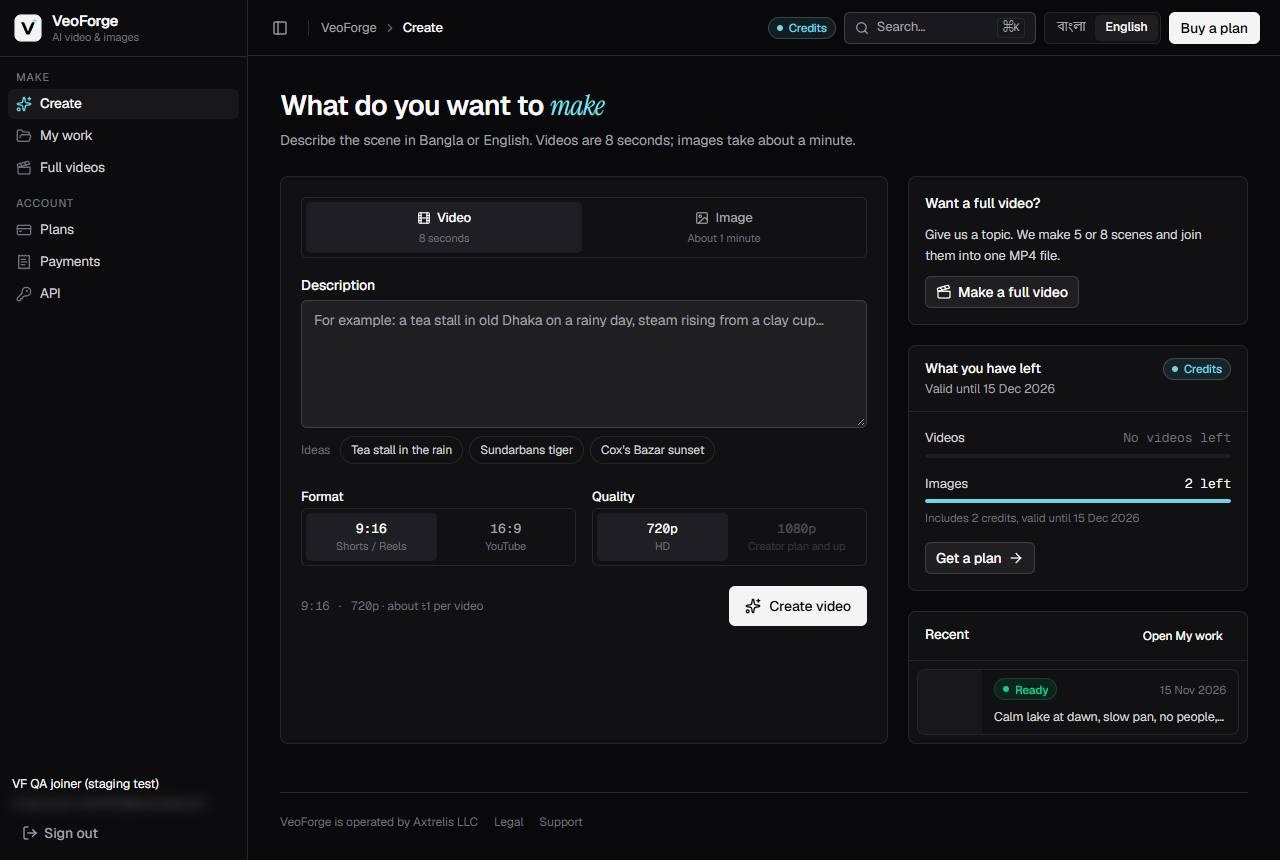
- Each video or image uses one. A 1080p video counts as two.
- Credits cannot be used after their expiry date, so use them before then.
- If a video or image is not made (it fails or is cancelled), its credit comes back by itself. You do not need to do anything.
- For more credits, tap "Buy credits"; it opens WhatsApp to your seller. See "Getting more credits" below.
5.Using a credit code
A seller may give you a credit code (on WhatsApp, by SMS or on paper). Each code works once.
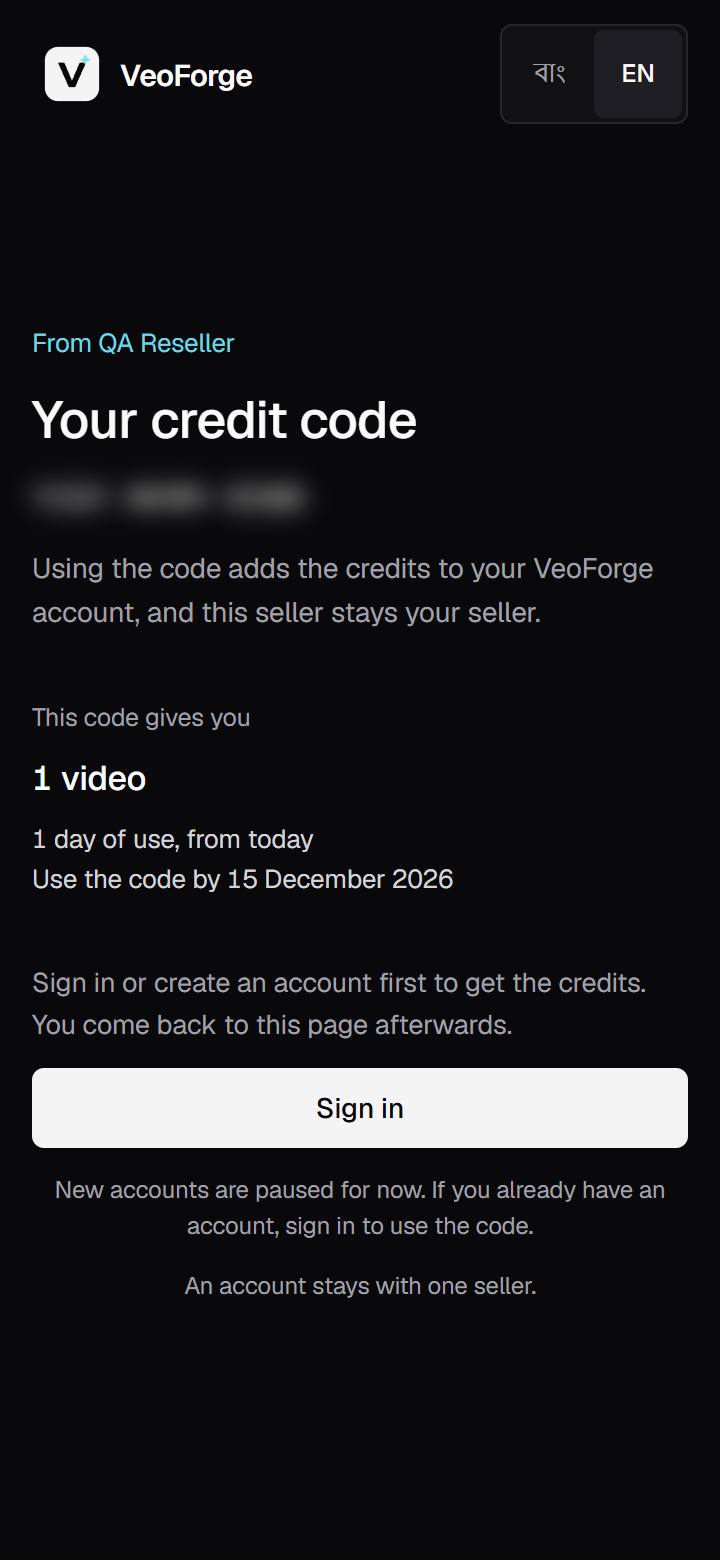
- Open the link that came with the code, or type veoforge.dev/redeem/ followed by the code in your browser (for example veoforge.dev/redeem/XXXX-XXXX-XXXX). The page shows which seller it is from, how many videos and images it gives, how many days you can use them, and the date by which you must use the code. (The code is blurred in the picture.)
- If you are signed in: tap "Get the credits". The first time, the page tells you that your account will be linked to this seller and that this cannot be changed later; your own plan and the credits you bought stay as they are. If that is fine, tap "Link and get the credits".
- If you have no account yet or are not signed in: tap "Sign in" or "Create account" on the page. When you are done you come back to this page; then tap "Get the credits".
- When it says "Credits added", you are done. The days of use start today, and you are now a customer of that seller. Tap "Open VeoForge" to start making videos.
Good to know
- If it says "This code was already used", "This code has run out" or "This code was cancelled", ask your seller for a new code. If it says "Code not found", check every character again.
- An account stays with one seller. Another seller's code does not work on your account.
- If the page says "New accounts are paused for now", only people who already have an account can sign in and use the code; try again later.
6.Getting more credits
- When you need more credits, tap "Buy credits" in the app. It opens WhatsApp so you can talk to your seller.
- Tell your seller how many credits you need and how you will pay. The seller gives you a code; use it as in "Using a credit code" above.
7.Download your work
- Open "My work" from the menu. Everything you made is kept here.
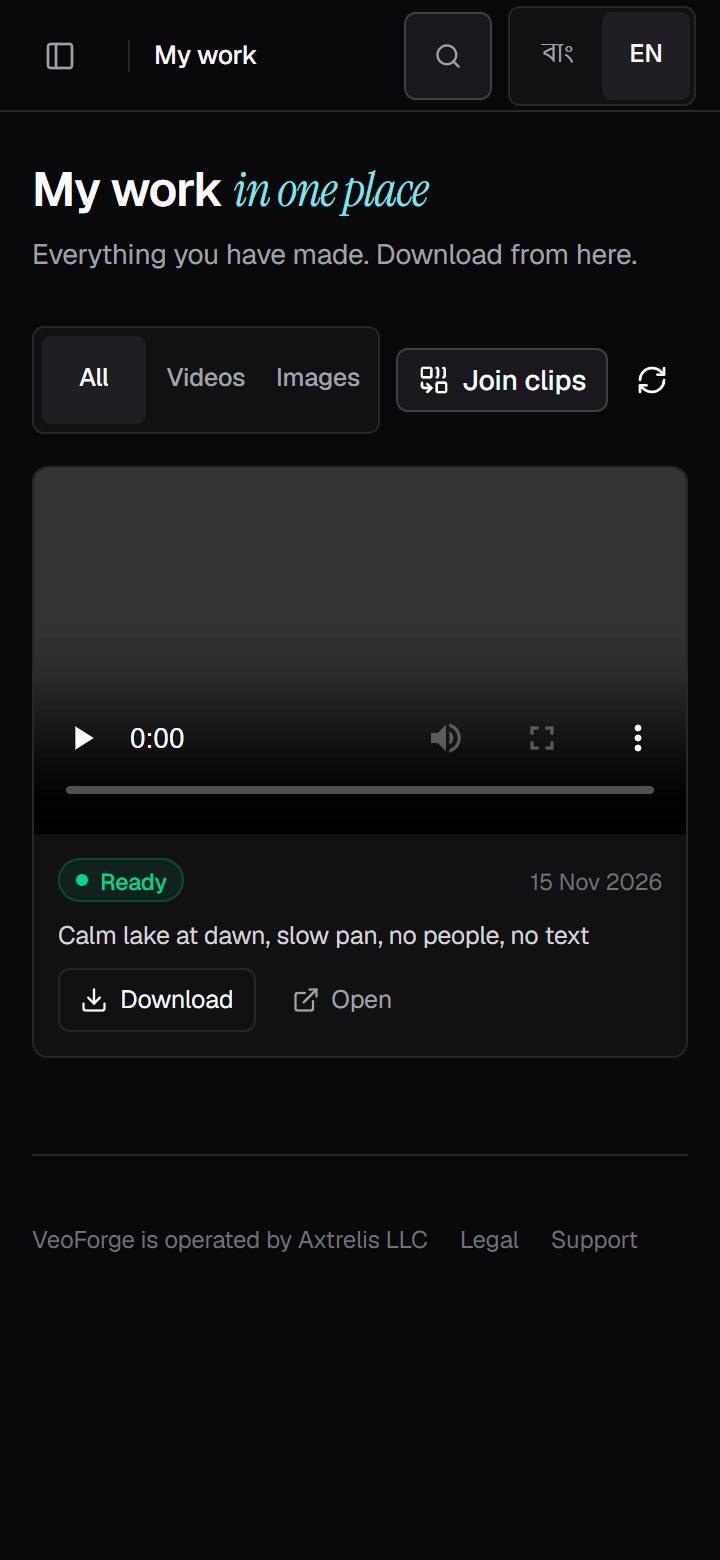
- Tap "Download" under the one you want. The file is saved on your phone or computer, ready to upload to Facebook, YouTube or TikTok.
- To join several videos, tap "Join clips", pick the clips in order and tap "Make one video".
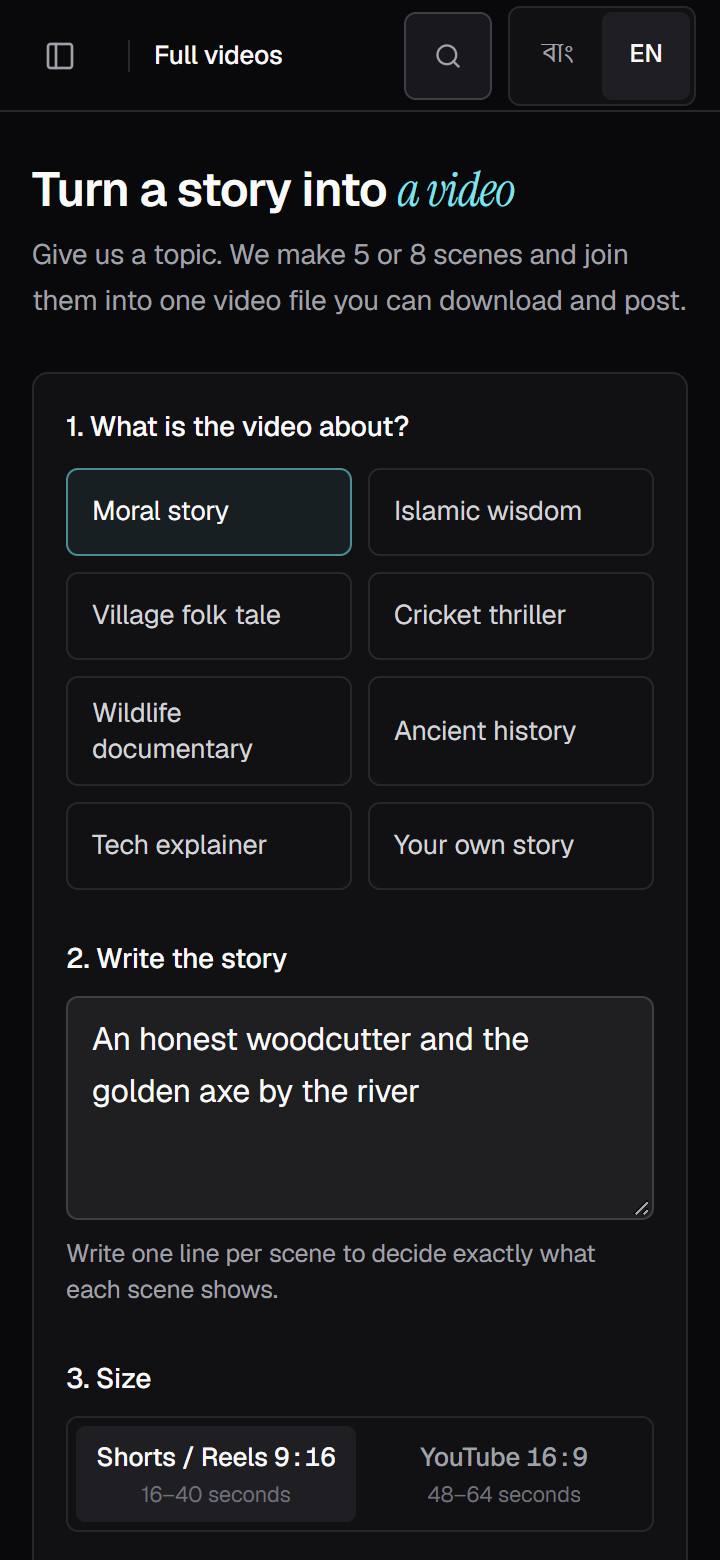
- For a full video with several scenes from one topic, open "Full videos" in the menu.
Good to know
- Keep a copy of important videos on your own phone or computer.
8.What you may not make
- No videos or images that look like a real person without their permission, nothing harmful involving children, no sexual or violent content, no hate, no scams and no fake news.
- A request that breaks these rules can be stopped, and repeated breaks can close the account. The full rules are on the "Legal" page of veoforge.dev.
9.Report a problem or share an idea
- Open "Report a problem" in the menu. Under "What is it about?" pick: something does not work, something you would like, something you did not like, or anything else.
- Write what you did and what happened under "Details". If you like, pick the video or image under "Which job is it about?" and add a screenshot, then tap "Send".
- Our answer shows on the same page, under "What I sent".
10.Service status
- When video or image making is slower than usual or paused, a note shows at the top of the app. Tap "Details" to open the status page.
- veoforge.dev/status shows how video and image making is running right now, what we are doing when something is wrong, and any planned maintenance. All times are Dhaka time.
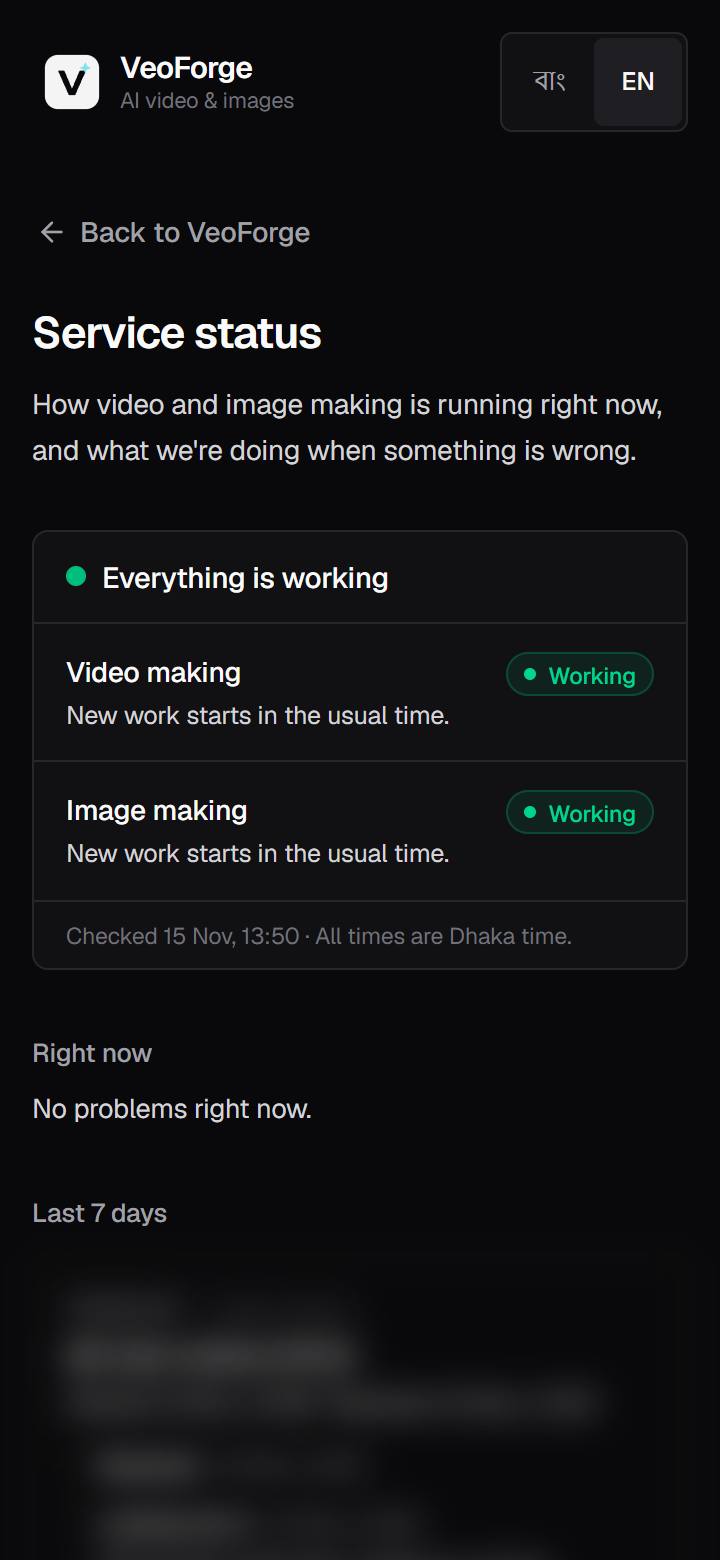
- Your work stays in line while things are slow or paused and starts as soon as it can. You do not need to send it again.
11.Where to get help
- Questions about credits or paying: ask your seller first. For anything else, use "Report a problem" or email us.
- A video does not finish, or you cannot sign in: open "Report a problem" in the menu, or email [email protected]. Include your account email and a screenshot of the problem.
- In the app, tap the search button at the top and type "help" for the support links. The "Guide" link at the bottom of every page brings you back to this guide.